Pair your smart watch, enable call audio, grant permissions, and place calls.
If you want a clear, simple path to talk from your wrist, you’re in the right place. I’ve tested dozens of watches and phones. In this guide on How To Make Bluetooth Calls From A Smart Watch, you’ll get practical steps, pro tips, and fixes that actually work. Let’s turn your watch into a reliable hands-free calling tool in minutes.
What Bluetooth Calling On A Smartwatch Really Means
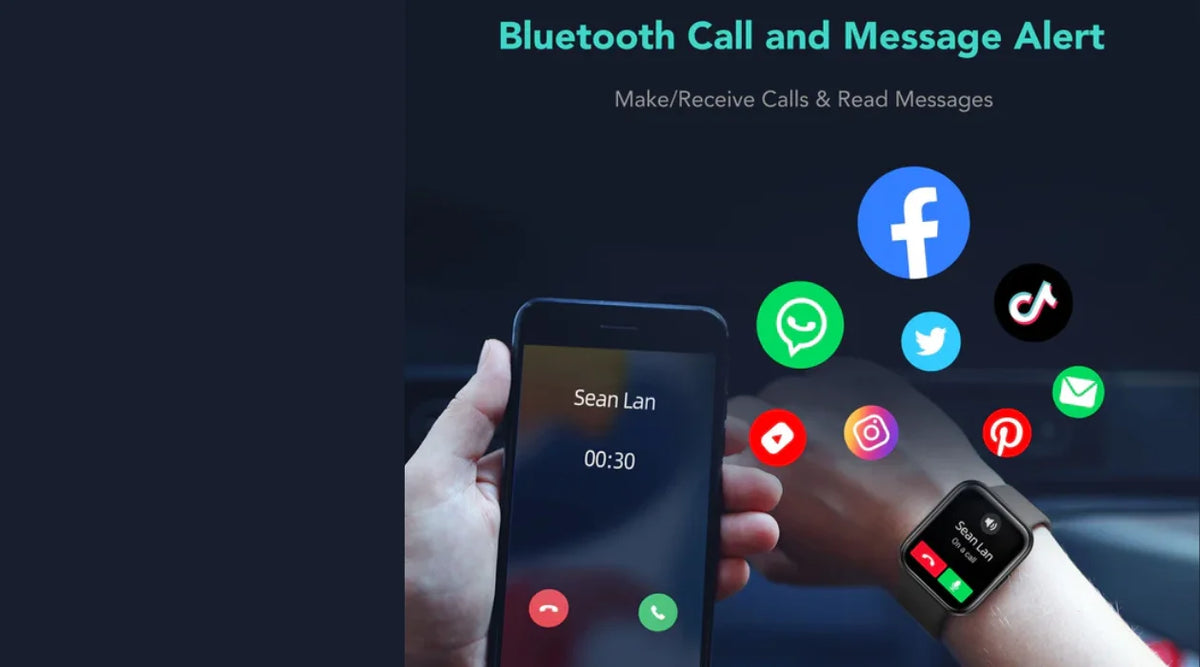
Bluetooth calling turns your watch into a hands-free headset for your phone. Your watch uses its mic and speaker. Your phone still handles the network part of the call.
There are three common ways calls work on a watch:
- Bluetooth calling. The watch acts like a wireless headset using HFP or HSP profiles.
- Wi‑Fi relay. The watch uses your phone’s Wi‑Fi calling when Bluetooth is out of range.
- Cellular watch. LTE models make calls without your phone.
This guide focuses on Bluetooth calling. It is the fastest way for most users. If you have LTE, the steps still help. But your watch may not need the phone nearby.
Range is about 30 feet or 10 meters. Quality depends on your phone’s Bluetooth, your watch mic and speaker, and the noise around you. Many watches support wideband speech for clearer voice.

Compatibility Checklist Before You Start
Before you learn How To Make Bluetooth Calls From A Smart Watch, check support. Not every model can place calls over Bluetooth.
Confirm these points:
- Hardware. Your watch must have a mic and speaker.
- Software. Your watch must support Bluetooth call profiles like HFP.
- Phone OS. iPhone or Android with current updates.
- Companion app. Installed and updated. Signed in.
- Permissions. Contacts, phone, microphone, notifications allowed.
- Battery. Both devices above 30% to avoid drops.
- Distance. Keep phone near you for stable audio.
Brand notes you should know:
- Apple Watch. Calls work if paired to iPhone by Bluetooth or Wi‑Fi. LTE models can call on their own.
- Wear OS watches. Pixel Watch and Fossil work well. You need the Calls and Audio toggles on Bluetooth.
- Samsung Galaxy Watch. Use the Wearable app. Turn on Call audio for the watch.
- Budget watches. Some add a second “Call” Bluetooth device. You must pair both entries.
Step-by-Step: How To Make Bluetooth Calls From A Smart Watch
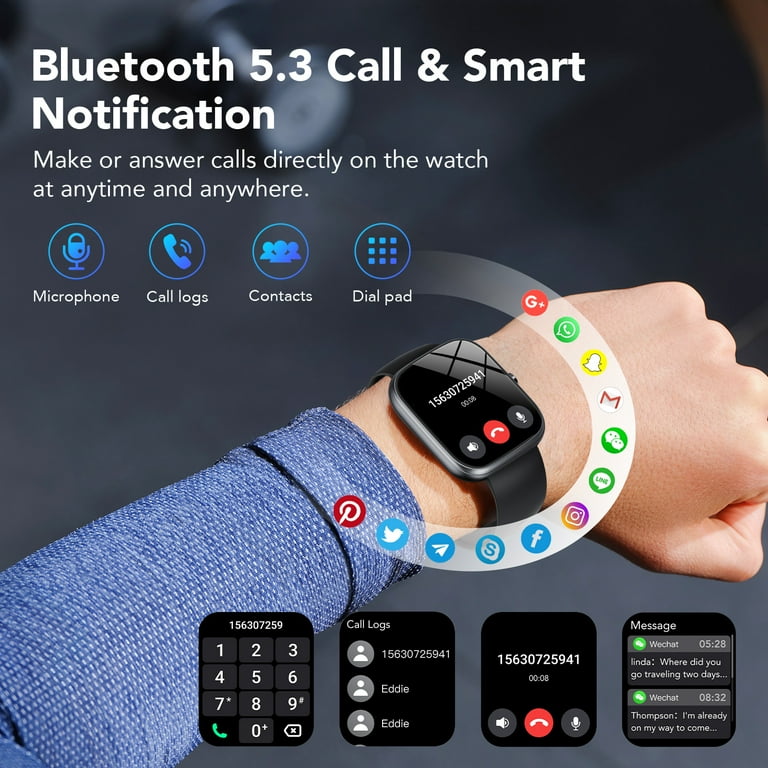
Follow these steps to master How To Make Bluetooth Calls From A Smart Watch. I will show general steps first. Then I will give brand tips.
General setup
- Update devices. Update your phone OS, watch firmware, and the companion app.
- Pair the watch. Use the companion app to pair and finish onboarding.
- Allow permissions. Enable Contacts, Phone, Microphone, and Notifications.
- Turn on Bluetooth call audio. On your phone’s Bluetooth settings, tap your watch entry. Enable Calls and Audio. On some phones, it is named Phone calls and Media audio.
- Sync contacts. In the app, allow contact sync or choose favorites to speed up dialing.
- Place a test call. Use the watch dialer, contacts, or voice assistant to call a friend.
- Adjust volume. Use watch volume keys or on-screen slider. Check both watch and phone volumes.
- Confirm routing. During the call, make sure audio is on the watch. Change the audio route if needed.
Apple Watch with iPhone
- Pair in the Watch app on iPhone. Keep Bluetooth and Wi‑Fi on.
- Open the Phone app on Apple Watch. Tap Contacts, Keypad, or Recents. Tap the call.
- If the phone is near, Apple Watch handles audio by Bluetooth. If not, it may use Wi‑Fi or LTE if available.
- In the Watch app, allow Calls on Apple Watch and enable Wi‑Fi Calling on iPhone if you want relay.
Wear OS (Pixel Watch, Fossil, TicWatch)
- Pair with the Watch app on Android or via the on-watch setup.
- On phone, go to Settings, Bluetooth, tap the watch gear icon. Enable Calls and Audio.
- Open the Phone app on the watch. Tap a contact or use the keypad. You can also say “Call Sarah” with Assistant.
Samsung Galaxy Watch (One UI Watch)
- Pair with the Galaxy Wearable app.
- In the app, open Watch settings, Bluetooth, and turn on Call audio.
- On Android Bluetooth settings, select your watch and enable Phone calls and Media audio.
- Use the Phone app or the Contacts app on your watch to start a call.
Budget and lifestyle brands (Amazfit, Huawei, Noise, Fire-Boltt, boAt, Realme)
- Many show two Bluetooth entries. One is for data. One is for call audio. Pair both.
- In Settings, Bluetooth, pair the entry that has a headset icon or “Call/Audio” in the name.
- Open the watch dialer. Grant access to your contacts in the companion app. Test with a short call.
How To Make Bluetooth Calls From A Smart Watch with voice assistants
- Apple Watch. Say “Hey Siri, call Mom.”
- Wear OS. Say “Hey Google, call John.”
- Samsung. Use Bixby, “Call Alex.”
How To Make Bluetooth Calls From A Smart Watch from messages
- Open Messages on your watch. Tap a thread. Choose the call icon. It dials the contact.
Two-device conflict tip
- If your car stereo is also connected, calls may route to the car. Pick the audio output on-screen during the call. Choose Watch.
Personal note from real use
- My Galaxy Watch once failed to ring during school pickup. The fix was simple. I had Calls disabled in Bluetooth settings after a phone update. I turned it back on and the watch handled calls again.
- A budget watch I tried showed “XYZ Watch” and “XYZ Watch Call” in Bluetooth. Pairing only one entry broke calling. Pairing both entries solved it.

Pro Tips For Clearer Calls And Better Battery
Make your calls sound better. Keep your battery happy too. These tips come from daily use and many tests.
Call quality
- Keep the phone within a room or two. Walls reduce range fast.
- Cup your free hand near the watch mic in wind. It helps cut gust noise.
- Switch to earbuds if a call is long or private.
Battery life
- Lower watch volume a bit. High volume costs power.
- Close other audio apps on your phone. It reduces Bluetooth churn.
- Turn off always-on display during long calls.
Stability
- Lock your watch band snug. A steady mic position improves pickup.
- Use Wi‑Fi relay or LTE if you move far from the phone.
- Avoid 2.4 GHz crowding. A busy Wi‑Fi channel can cause stutter.
Privacy and etiquette
- Use a quiet tone. Wrist speakers project sound.
- For sensitive calls, route to earbuds in one tap.
- Mute when not speaking to cut background noise.
These tips make How To Make Bluetooth Calls From A Smart Watch smooth day to day. Small tweaks go a long way.

Common Problems And Fixes
You might hit a snag. Here is how to fix the most common ones, fast.
Watch does not show in phone call route
- Reopen Bluetooth settings. Tap the gear by your watch. Enable Phone calls.
- Some brands need a second “Call” device paired. Add it.
People cannot hear you
- Check the mic hole on the watch. Make sure it is not covered by your sleeve.
- Grant the Microphone permission in the companion app. Restart the watch.
You cannot hear them
- Raise watch volume. Check Do Not Disturb or Focus mode.
- On the call screen, pick audio route. Choose Watch.
Calls drop after a minute
- Keep the phone closer. Move away from thick walls and metal.
- Turn off battery optimization for the companion app.
Contacts do not show up
- Enable Contact sync in your app settings.
- For iPhone, allow Contacts access to the Watch app and to the Phone app.
Echo or delay
- Lower watch volume to reduce feedback.
- If a second device is connected, like a car, choose a single audio target.
These fixes align with How To Make Bluetooth Calls From A Smart Watch across brands. They solve 80% of real-world issues I see.

Safety, Privacy, And Limits To Know
There are rules and limits you should know. They keep you safe and within local law.
- Local driving laws vary. Some places still restrict device use. Even hands-free. Learn the rule where you live.
- Bluetooth range is short. Expect about 10 meters without walls.
- Noise reduction helps but is not magic. Busy streets will affect clarity.
- Call recording laws vary. Always ask first if you record a call.
- Firmware updates can change features. Re-check your call toggles after major updates.
How To Make Bluetooth Calls From A Smart Watch is powerful. Use it with care and good judgment. Your voice, privacy, and safety matter more than speed.

Frequently Asked Questions of How To Make Bluetooth Calls From A Smart Watch
Do I need LTE to make calls from my watch?
No. You can use Bluetooth calling with your phone nearby. LTE is only needed for phone-free calling.
Will Bluetooth calls work if my phone is in another room?
Yes, within Bluetooth range. Thick walls, metal, or distance can cause drops or poor audio.
Can I answer calls on my watch but keep audio on my phone?
Yes. During the call, switch the audio route to Phone on-screen. Your watch will control, and the phone handles audio.
Why is my watch not showing my contacts?
You need to grant Contacts permission in the companion app. Then allow sync and wait a minute for the list to load.
Is call quality as good as a phone or earbuds?
It is fine for quick chats. Earbuds or the phone often sound better in wind or crowds.
Conclusion
You now know How To Make Bluetooth Calls From A Smart Watch from start to finish. You checked support, paired the right way, granted key permissions, and learned pro tips. You also have fast fixes for the most common problems.
Put this guide to work today. Make a short test call. Then tune your setup so it fits your routine. If you found this helpful, share it, subscribe for more smart watch tips, or drop your question in the comments.